
Cast Kemo IPTV to Chromecast: Phone to TV in Seconds
August 19, 2026 · 8 min read
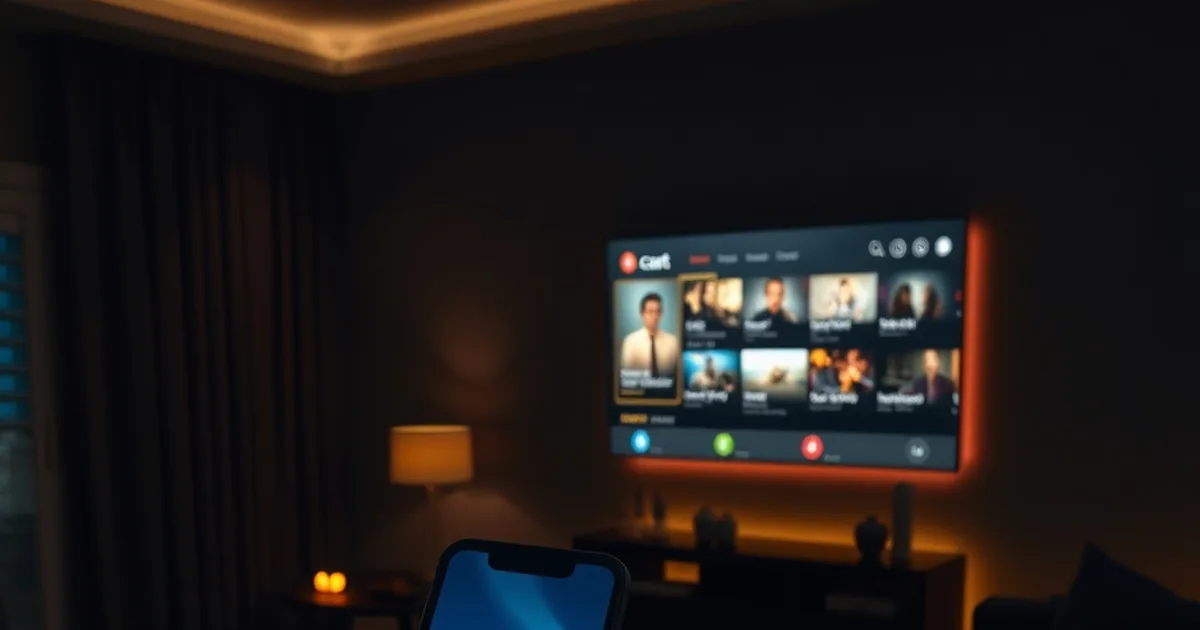
If you already set up Kemo IPTV on your phone, you don't need a second app, a second login, or a Smart TV app store search to watch on the big screen — you need a cast button. Chromecast and AirPlay turn any phone-based Kemo session into a living-room stream in a few taps, and it works even on TVs that don't officially support IPTV apps at all.
August is peak home-entertainment season, and "cast IPTV to Chromecast" is one of the highest-volume searches in the whole IPTV niche — nearly every provider site covers it. Kemo hasn't had a dedicated guide until now, and that's a gap worth closing, especially as a natural next step after our device-specific setups. If you've already followed our Firestick or Roku installs and want to cover a TV that isn't running either box, this is the missing piece.
Below: what you need, the exact steps for Android-to-Chromecast and iPhone-to-AirPlay, how to keep picture quality sharp, what to do when casting buffers, how multi-room casting works, and whether a VPN helps or hurts the connection.
Why Chromecast and AirPlay Are the Simplest Way to Get Kemo on Your TV
Installing a dedicated player on a Smart TV means finding the right app store, checking whether your TV brand even carries a compatible IPTV player, and logging into your Kemo account all over again on a remote-control keyboard. Casting skips all of that. Your phone is already signed in and already configured — casting just changes where the picture appears.
The two protocols work differently, and it matters which one you're using. Google Cast (what Chromecast uses) sends a stream link to the TV and lets the TV pull and decode the video directly — your phone becomes a remote control, not the source of the picture. AirPlay screen mirroring, by contrast, has the phone do the decoding and continuously streams a compressed copy of its screen to the TV. Both get Kemo on your TV; only one keeps your phone free to do something else while you watch.
If you're covering a TV that will run Kemo every day, a permanent install is still the sturdier long-term option — see our guides to /blog/kemo-iptv-firestick-setup and /blog/iptv-roku-setup-installation-guide. Casting shines for guest rooms, hotel-style setups, second TVs, or anytime you want to watch something right now without touching a remote.
Not sure if your TV or phone supports casting Kemo IPTV?
What You Need: Device Requirements, Bandwidth, and App Setup
On the phone side: an Android phone or iPhone with the Kemo IPTV app installed and already signed into your subscription. On the TV side: either a TV with Chromecast built in (most Android TV and Google TV sets), a separate Chromecast dongle, an AirPlay 2–certified Smart TV, or an Apple TV box plugged into any TV.
The one rule that trips people up most: your phone and your TV (or Chromecast device) must be on the same Wi-Fi network. Casting protocols discover devices through local network broadcasts, so a phone on cellular data or a separate guest Wi-Fi network simply won't see the TV, no matter how good the signal is.
Not every IPTV player app supports a native cast button — some rely on your phone's system-level screen mirroring instead, which is a materially different (and lower-quality) experience, covered below. If you haven't settled on a player yet, our comparison at /blog/best-iptv-player-for-kemo-2026 flags which apps ship with a proper Google Cast button versus which ones only mirror.
For bandwidth, the safest approach is the same one we recommend for any streaming setup: leave headroom above what a single stream needs, especially if other devices share the connection. If casting consistently stutters even on a strong-looking Wi-Fi signal, your ISP connection itself may be the bottleneck — our guide to /blog/detect-fix-isp-throttling-iptv walks through how to tell the difference.
Cast Kemo IPTV from Android Phone to Chromecast: Step-by-Step
Open the Kemo IPTV app and start playing any channel or stream. If your player supports native Google Cast, you'll see a small cast icon (a rectangle with signal bars in the corner) in the player controls or top bar. Tap it, wait for it to list nearby devices, and select your Chromecast or Android TV.
The stream should switch to the TV within a few seconds, and your phone screen will show simplified playback controls — play/pause, volume, and a disconnect button — while the TV does the actual decoding. You can lock your phone or switch to another app without interrupting playback, since the phone is just a remote at that point.
If your specific player doesn't have a cast icon, you can still get the picture onto the TV using Android's built-in "Cast" option in Quick Settings (swipe down twice, look for Cast or Screen Cast). This mirrors your entire phone screen rather than sending a clean stream link, which works but comes with the trade-offs covered in the picture quality section below.
Either way, once connected, use your TV remote or phone volume buttons to adjust sound — Chromecast routes audio through the TV's speakers by default.
Cast from iPhone to Your TV via AirPlay 2: Step-by-Step
Open Control Center on your iPhone (swipe down from the top-right corner, or up from the bottom on older models) and tap Screen Mirroring. Select your Apple TV or AirPlay 2–certified TV from the list. Once connected, open the Kemo IPTV app and start playback — whatever is on your phone screen now mirrors to the TV.
A handful of media apps support a dedicated AirPlay video button that streams content directly to the TV without mirroring the whole screen, similar to how Chromecast works — check the player controls for an AirPlay icon shaped like a TV with a triangle underneath. If your Kemo player has one, use it instead of full mirroring; it's lighter on your phone's battery and typically sharper.
The key difference from Android: full-screen AirPlay mirroring keeps your phone actively decoding and re-encoding video the whole time, so the screen has to stay on and the app has to stay in the foreground. Lock the phone or switch apps and the mirrored stream will pause or drop, which is the single most common AirPlay complaint people run into.
Picture Quality and Playback Settings for Cast Devices
Native Chromecast streaming generally looks noticeably better than screen mirroring, because the TV decodes the original stream directly instead of decoding a re-compressed copy of your phone's screen. If your player offers both a cast button and a mirror option, always choose the cast button.
Inside the Kemo app, check for a quality or resolution setting in the player menu before you cast — matching the stream quality to what your network can sustain avoids the TV requesting a bitrate your Wi-Fi can't keep up with. If you're seeing pixelation or macroblocking that wasn't there on the phone screen, drop the quality setting one notch and see if it clears up.
Subtitles and audio tracks, when the channel offers them, usually carry over fine with native casting but can lag or drop out during full-screen mirroring, since mirroring re-encodes everything as one video-plus-audio stream rather than passing separate tracks through.
Troubleshooting: Buffering, Drops, and Latency Issues When Casting
Most casting buffering traces back to Wi-Fi, not the IPTV stream itself. If your router broadcasts both 2.4GHz and 5GHz bands, connect your TV or Chromecast to 5GHz when it's in range — it has more bandwidth and less interference from neighboring networks, though shorter range than 2.4GHz.
If playback was smooth on your phone but stutters once cast to the TV, the extra hop from phone-to-router-to-TV is adding latency the direct connection didn't have. Moving the Chromecast or TV closer to the router, or adding a mesh Wi-Fi node in that room, usually resolves it faster than any app setting.
On iPhone specifically, a dropped AirPlay connection is often just the screen timing out or the app getting backgrounded — check your Auto-Lock setting and keep Kemo in the foreground during mirrored playback.
If buffering happens at the same time every day regardless of device or Wi-Fi band, that pattern points toward your internet provider throttling streaming traffic rather than a casting problem — our guide to /blog/detect-fix-isp-throttling-iptv shows how to confirm it.
Multi-Room Casting: Watch Kemo on Different TVs at the Same Time
Each Chromecast or AirPlay-enabled TV in your home can run its own independent cast session — one phone can cast the news to the kitchen TV while another family member casts a different channel to the living room, as long as each device that's casting has the Kemo app installed and signed into the subscription.
How many simultaneous streams your plan supports depends on your subscription tier rather than the casting technology itself, so multi-room watching is really a question of concurrent-connection limits, not Wi-Fi capacity. Our guide to /blog/iptv-family-multi-device-setup covers how those limits work across a household and how to plan around them.
For quick reference, the related setups mentioned throughout this guide: /blog/kemo-iptv-firestick-setup, /blog/iptv-roku-setup-installation-guide, /blog/best-iptv-player-for-kemo-2026, /blog/iptv-family-multi-device-setup, and /blog/detect-fix-isp-throttling-iptv.
Get every screen in the house streaming Kemo tonight.
VPN + Casting: Do You Need VPN Protection When Casting IPTV?
A VPN protects your traffic between your phone and the wider internet, but casting is a local-network handshake — your phone has to see and talk to the Chromecast or TV on the same Wi-Fi. Many VPN apps route all traffic, including local network discovery, through the VPN tunnel by default, which breaks that handshake and makes the TV invisible to your phone.
If you run a VPN and casting won't connect, look for a "local network" or "LAN" exception, split-tunneling option, or an allow-list setting in your VPN app — most mainstream VPN apps have one. Enabling it lets local discovery traffic bypass the tunnel while everything else stays protected.
If your VPN app doesn't offer that option, the simplest workaround is disconnecting the VPN just long enough to establish the cast connection, then reconnecting it afterward — once the Chromecast session is active, it's the TV pulling the stream, not your phone routing it, so the VPN interruption is brief and low-risk either way.
Frequently asked questions
Does casting Kemo IPTV use more data than watching directly on my phone?
With native Chromecast, no — the TV pulls the stream itself, so your phone's data usage barely changes from just controlling playback. With AirPlay screen mirroring, your phone is actively re-encoding and sending video the whole time, which does use more battery and, on cellular, more data than watching directly.
Can I keep using my phone for other things while casting?
With native Chromecast, yes — once the stream is handed off, you can lock your phone or open other apps freely. With AirPlay screen mirroring, no — the phone screen has to stay on and the Kemo app has to stay in the foreground, or the mirrored picture will pause or drop.
Why does AirPlay mirroring look lower quality than Chromecast?
Chromecast has the TV decode the original stream directly. AirPlay mirroring has your phone decode the video, then re-encode the entire screen as a new compressed video feed to send to the TV — that extra compression step is what softens picture quality compared to native casting.
Do I need to buy a separate Chromecast device, or does my Smart TV already have it?
Most Android TV and Google TV branded sets have Chromecast built in — check your TV's settings menu for a "Cast" or "Google Cast" entry. If your TV doesn't have it built in, a standalone Chromecast dongle plugged into any HDMI port adds the capability.
Can I cast Kemo IPTV to a hotel or shared TV?
Only if that TV is on the same local Wi-Fi network as your phone and has Chromecast or AirPlay enabled — many hotel and shared networks block the local discovery traffic casting relies on for security reasons, in which case casting won't find the TV even if it's technically capable.
Read next: the pricing page or the FAQ.