
Watch 4K Sports on IPTV: Setup, Bandwidth & Devices 2026
August 5, 2026 · 8 min read
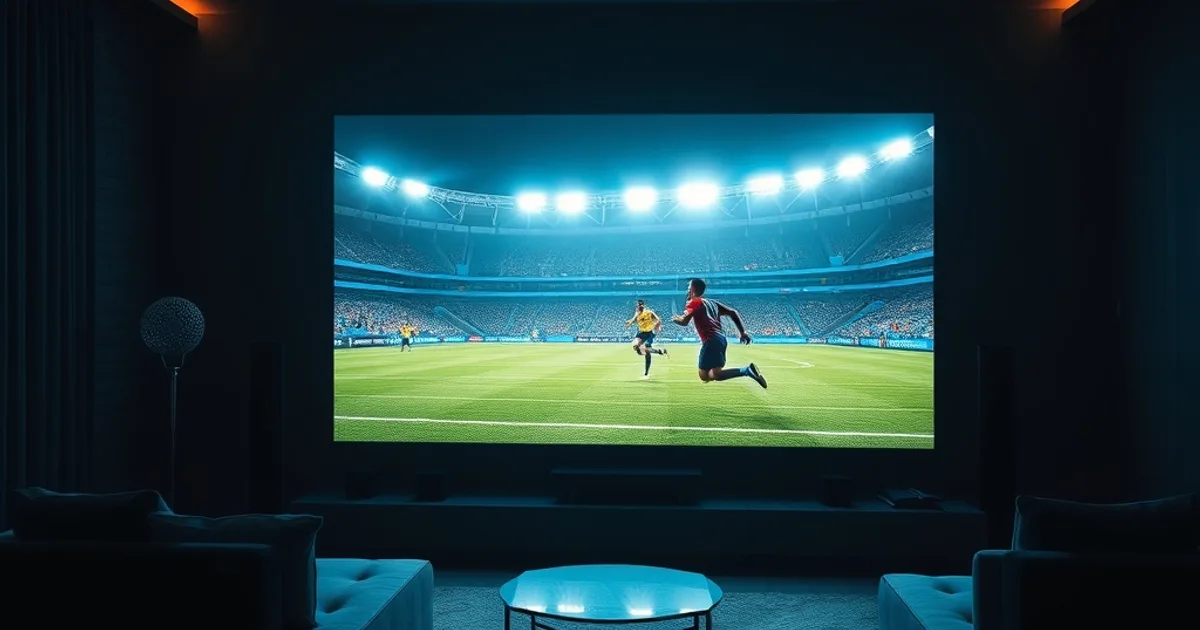
Type "4K IPTV setup" into any search engine and you'll get the same guide ten times over: turn on HDR, pick a fast device, done. None of it accounts for what actually happens when you try to watch a live match in 4K — the picture that looked flawless during a recorded film suddenly turns to mush the moment 22 players start sprinting across the pitch at once.
Sports content is a different animal from movies and series. It's almost entirely high-motion, it's watched in real time by millions of people simultaneously, and it gives your connection zero room to catch up if it drops a frame. A generic "4K setup guide" written for binge-watching a drama series will not prepare you for that.
This guide is written specifically for 4K sports on IPTV — the bandwidth numbers, the frame-rate math, the device quirks, and the live-event troubleshooting that the top-ranking generic guides skip entirely.
Why 4K sports streaming matters this season
August 2026 sits right at the start of Europe's football calendar — the Premier League, La Liga, Bundesliga, Ligue 1 and Serie A are all opening their 2026/27 seasons this month, coming off the momentum of the Milan-Cortina Winter Olympics earlier this year that put 4K broadcast quality in front of a huge new audience. Viewer expectations have shifted: people who watched Olympic events in crisp, high-frame-rate 4K are no longer satisfied with a soft, judder-prone 1080p football stream.
The problem is that search results for "4K IPTV setup" are dominated by generic guides written for movie streaming — pick a resolution, check your codec, buy a fast box. None of them address the thing that actually breaks 4K sports specifically: sustained high-motion content pushes far more data than a slow-paced film, and that gap is exactly where most viewers' setups fall apart during a live match.
Kemo has built its reputation around stream stability rather than channel-count marketing, which is precisely the angle sports viewers need right now. The rest of this guide walks through what 4K sports actually demands from your connection, your hardware, and your setup — not the generic checklist, the real one.
Not sure if your connection can actually handle 4K sports?
The bandwidth gap: why sports need 50+ Mbps (not 25 Mbps)
Most 4K streaming guides quote a single number — around 25 Mbps — because that's the figure video-on-demand platforms recommend for 4K film and TV content. That number assumes relatively static scenes, predictable motion, and a stream encoded once and cached efficiently at the edge. Live sports break every one of those assumptions.
A 4K sports broadcast has to encode constant, chaotic motion in real time, with no opportunity to pre-analyze the footage and optimize the encode the way a film studio does before release. To preserve detail during fast camera pans and sprinting players, sports encodes typically run at meaningfully higher bitrates than an on-demand 4K movie — which is why guides built around movie-streaming numbers consistently underestimate what a live match actually needs. As a rule of thumb, treat 50 Mbps as your target sustained speed for a single 4K sports stream, not the 25 Mbps you'll see quoted everywhere else.
That number is your household's downstream requirement while the stream is running — not your plan's advertised "up to" speed. ISPs sell peak theoretical throughput; what matters here is what your line actually sustains during the exact hour of a big match, when your neighborhood's usage is also at its peak.
If you're sharing that connection across a TV, a couple of phones, and someone else streaming in another room, the real headroom you need climbs quickly. That's a separate conversation about multi-device setup — covered in our /blog/iptv-family-multi-device-setup guide — but the short version is: budget bandwidth per screen, not per household.
How 60fps high-motion content affects your internet needs
Frame rate is the part every generic 4K guide skips, and it's arguably more important than resolution for sports specifically. A 30fps stream captures half as many frames per second as a 60fps stream — fine for a film with slow, deliberate camera work, but visibly juddery for a football match, especially during fast breaks, sprints, or a ball moving at speed across the frame.
The catch is that doubling the frame rate doesn't just double smoothness — it roughly doubles the amount of data your connection needs to move per second, because the encoder is now sending twice as many full frames of high-motion detail. This is the real reason a 4K sports stream can strain a connection that handles 4K films without any issue at all: the resolution is identical, but the data demand per second is not.
Practically, this means the bandwidth cushion that felt generous for movie night can vanish the moment you switch to a live match. If your connection is sitting right at the 25 Mbps mark that generic guides recommend, you're likely fine for a film and likely to see stutter or forced downscaling during a 60fps sports broadcast.
Which devices truly support 4K (and which just claim to)
Not every device labeled "4K" decodes 4K the same way. Fire Stick 4K and Fire Stick 4K Max both handle 4K IPTV streams well, but the base (non-4K) Fire Stick models will silently cap your output at 1080p regardless of what the app is sending — the most common cause of "why does my stream look soft" complaints. If you haven't set up your Fire Stick specifically for 4K playback, our /blog/kemo-iptv-firestick-setup guide covers the hardware and settings that matter.
Roku's 4K-capable models (Streaming Stick 4K, Ultra) handle 4K reliably, but older or budget Roku units — much like base Fire Sticks — are 1080p-only despite similar branding and packaging. Apple TV 4K is consistently one of the strongest performers for 4K sports specifically, thanks to dedicated hardware decoding that keeps up with high-motion, high-bitrate content without dropping frames.
Android TV boxes are the least predictable category. Performance varies enormously by chipset — a recent Android TV box with a modern processor handles 4K sports fine, while a budget box from a few years ago will struggle even if its spec sheet lists "4K support." If you're setting up more than one device type in the house, treat each one individually rather than assuming a single "4K setup" covers them all — see /blog/iptv-family-multi-device-setup for a device-by-device approach.
H.265/HEVC codec explained: why hardware decoding matters for 4K sports
Most 4K IPTV streams are encoded in H.265 (HEVC) rather than the older H.264, because HEVC delivers comparable picture quality at roughly half the bitrate. That efficiency is exactly why HEVC matters for sports: it buys you back some of the bandwidth headroom that 60fps high-motion content eats up.
The catch is decoding. H.264 is old enough that nearly every device decodes it in dedicated hardware, so it works even on weak processors. H.265 decoding, especially at 4K resolution and 60fps, needs a dedicated hardware decoder chip — and if your device lacks one, it falls back to software decoding, which is slow enough that many devices simply can't keep up in real time.
This is the quiet reason a device can technically "support 4K" on paper and still stutter badly on a live sports stream: it has no hardware HEVC decoder, so it's trying to brute-force the decode with its general CPU and losing the race against a live broadcast that won't wait for it.
Step-by-step: setting up Kemo for 4K sports across devices
On Fire Stick 4K or 4K Max: confirm your display is actually running at 4K (Settings > Display & Sounds), set the app's stream quality to its highest available profile rather than "auto," and connect via Ethernet where possible — a Fire Stick's Wi-Fi radio is a common bottleneck during peak-hour congestion that a wired connection sidesteps entirely. Full device setup steps are in /blog/kemo-iptv-firestick-setup.
On Apple TV 4K: the hardware decoding is strong enough that your main lever is network, not device. Prioritize a 5GHz or 6GHz Wi-Fi band over 2.4GHz, or Ethernet via the Apple TV's port if your router is nearby — Apple TV's built-in port makes wired setup simple and it's worth using for anything you plan to watch live.
On Android TV: check your box's chipset supports hardware HEVC decoding before assuming a stutter is a network problem — some budget boxes simply can't decode fast enough regardless of connection speed. Where the chipset is capable, the same rules apply: highest available quality profile, wired connection preferred, and close background apps that compete for CPU during playback.
Across all three, the same principle holds: 4K sports needs a stable, dedicated connection more than it needs a flashy device. Wired beats wireless every time bandwidth is tight, which it usually is during a big match.
Live sports troubleshooting: why buffering happens during big events
The most common trigger for buffering during a major match isn't your home network at all — it's ISP congestion at the neighborhood or regional level. When a big game kicks off, a large share of your ISP's local users are streaming at the same moment, and on oversubscribed local infrastructure that shared demand can throttle everyone's effective throughput even if your individual plan speed looks fine on paper.
There's also a distinct issue specific to live content: unlike on-demand video, a live stream can't pre-buffer far ahead, so any brief dip in throughput shows up immediately as stutter or a quality drop, where the same dip during a movie would be absorbed by the buffer without you noticing. This is why a connection that plays films perfectly can still stumble on live matches — the margin for error is simply smaller.
Before blaming the provider, run a speed test during the match itself, not beforehand — congestion is time-of-day specific and a test run at noon tells you nothing about 3pm kickoff conditions. If speeds drop specifically during peak sports hours, that's an ISP congestion signature, not a stream problem, and the fix is usually wired Ethernet plus closing any other devices competing for bandwidth in the house. We go deeper on diagnosing and fixing exactly this pattern in /blog/keeping-stream-stable.
If buffering happens consistently regardless of time of day or device, that's a different signal — worth flagging directly rather than troubleshooting blind.
Get the plan tier built for 4K live sports on every device in your house.
Is your Kemo plan tier 4K-capable?
Not every subscription tier is built with 4K sports concurrency in mind, and the right tier depends on how many screens in your house need 4K at once, not just whether 4K is technically available on your plan. Our /blog/kemo-iptv-subscription-guide breaks down exactly which tiers include 4K access so you're not guessing.
It's also worth weighing whether the jump to a higher tier is worth it for what you actually watch — if 4K sports is a once-a-week event for you versus a daily habit, the value calculation is different. /blog/kemo-iptv-price-vs-quality walks through that trade-off directly rather than assuming everyone needs the top tier.
The short version: pair your plan tier to your real usage — number of 4K-capable devices, how many run simultaneously, and how often live sports is the reason you're watching — rather than defaulting to the most expensive option out of caution.
Frequently asked questions
Do I really need 50 Mbps for every IPTV stream, or just for sports?
Just for high-motion 4K content like live sports. Standard-definition or 1080p streams, and even 4K films with slower motion, need far less. The 50 Mbps target is specifically for sustained 4K sports viewing, not a blanket requirement for all IPTV use.
Does upgrading to Wi-Fi 6 fix 4K sports buffering?
It can help if your bottleneck is Wi-Fi congestion from multiple devices, but it won't fix ISP-level congestion during peak match hours. Wired Ethernet remains the most reliable fix regardless of your Wi-Fi generation, since it removes wireless interference from the equation entirely.
Why does my 4K stream only downgrade quality during big matches?
This is almost always ISP congestion at the neighborhood level — a large share of local users streaming the same event at once, which throttles effective throughput even when your individual plan speed tests fine at other times of day.
Is H.265/HEVC required, or does H.264 4K work too?
H.264 can technically carry 4K, but it needs roughly double the bitrate of H.265 for the same quality, which makes an already bandwidth-hungry sports stream even heavier. H.265 with hardware decoding support on your device is the more reliable combination for live sports specifically.
Can I stream 4K sports on multiple devices in my house at the same time?
Yes, but each concurrent 4K sports stream needs its own bandwidth allocation on top of your baseline — treat it as roughly 50 Mbps per simultaneous 4K sports stream, not per household, and size your plan and connection accordingly.
Should I test my download speed or upload speed for 4K sports?
Download speed is what matters for watching a stream. Run the test during the actual time window you plan to watch — testing at a quiet hour won't reveal congestion that only appears during peak live-event traffic.
Read next: the pricing page or the FAQ.