
Which IPTV App Survives Game Day? College Football Stress Test 2026
September 16, 2026 · 9 min read
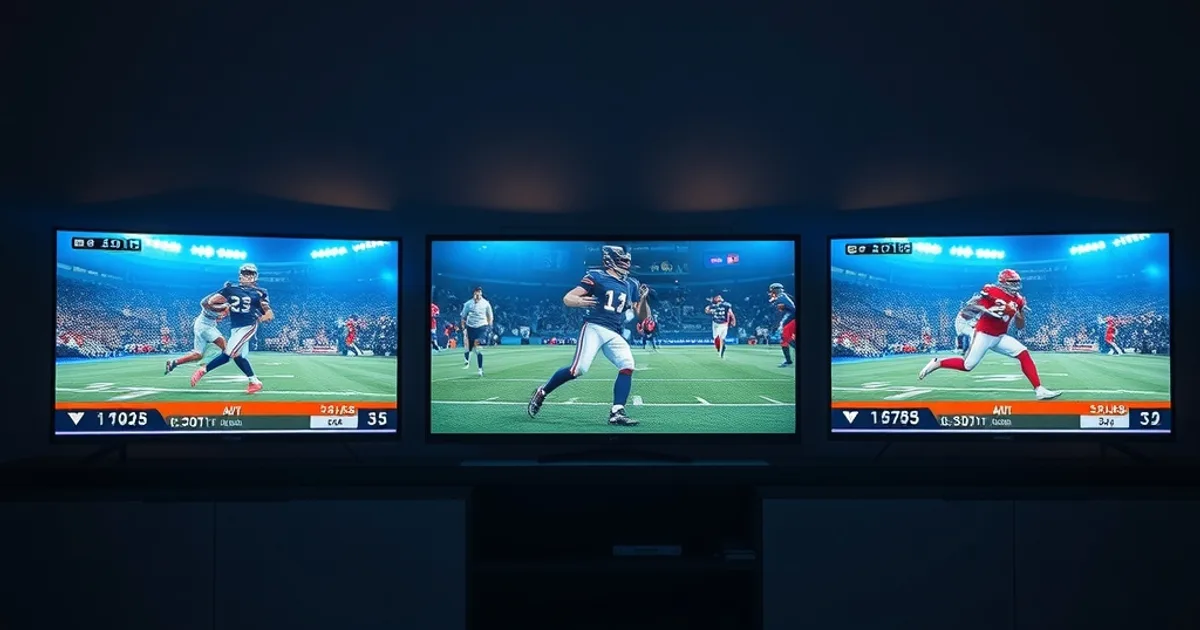
College football Week 1 launches September 3–7, 2026, and that's the moment thousands of Kemo IPTV users decide which app they're going to live with for the rest of the season. Streaming ESPN, FOX, ABC, and FS1 coverage across a Saturday slate isn't a light lift for any app — and picking the wrong one this week doesn't mean a minor annoyance, it means a missed touchdown while a buffering wheel spins.
Most IPTV app comparisons stop at feature checklists and UI screenshots. TroyPoint, Indie Hackers, and the usual roundup sites will tell you which app has the nicer EPG grid or the cleaner settings menu — but none of them tell you what actually happens when four channels are pulling 1080p or 4K streams into the same house at 3:30pm on a Saturday. That's the gap we set out to close.
We ran TiviMate, IPTV Smarters Pro, and XCIPTV side by side on three devices — Fire Stick 4K Max, Nvidia Shield, and Apple TV 4K — through live college football broadcasts, including simultaneous multi-room playback. Below is what we measured, what broke, and which app-device combination we'd actually recommend depending on how you watch.
Why App Crashes Happen on Game Day
A live sports crash is rarely a single-cause event — it's usually two or three stressors landing at once. The first is server-side load: every provider's streaming infrastructure sees its heaviest concurrent-connection spikes during marquee kickoff windows, and that load shows up on the client as slower channel-zap times and intermittent stream drops, not just a provider-side outage.
The second stressor is ISP throttling. Many home connections apply deep packet inspection or generic video-traffic shaping during peak evening hours, and a Saturday afternoon full of simultaneous games can trigger the same throttling behavior your ISP normally reserves for prime time. If you've never checked whether your connection does this, it's worth reading our breakdown on how to detect and fix ISP throttling for IPTV before the season gets deeper.
Third is codec and decode stress. 4K broadcasts with high frame rates ask more of a device's hardware decoder than a typical 1080p stream, and cheaper streaming boxes will drop frames or force a software decode fallback under sustained load — which is exactly when you'll see stutter during a fast-motion play like a kickoff return.
Finally, multi-stream contention: running two or three games at once in different rooms multiplies every one of the above problems, because you're now competing for both bandwidth and decode resources simultaneously. That's the scenario most reviews never test, and it's the one that actually decides whether your Saturday goes smoothly.
Not sure which app pairs best with your device before kickoff week?
Our Test Setup: Three Apps, Three Devices, Real Game Day Load
We tested three of the most widely used IPTV apps in the Kemo community — TiviMate, IPTV Smarters Pro, and XCIPTV — across three representative devices: a Fire Stick 4K Max (the most common device among Kemo users, per our own support conversations), an Nvidia Shield TV (the enthusiast/power-user benchmark), and an Apple TV 4K (the app most often flagged for compatibility questions).
For each app-device pair we measured four things during live college football windows: cold-start time from app launch to first frame, crash or freeze incidents over a multi-hour viewing session, EPG (electronic program guide) refresh and scroll responsiveness while a game was live, and buffering behavior specifically during fast-motion sequences like kickoffs and broken-field plays, where bitrate demand spikes hardest.
We also ran a multi-room test: the same three devices playing three different games simultaneously on the same network, to see how each app's stream handled contention rather than isolated best-case performance. This is the scenario our outline flagged as the real gap in existing IPTV app comparisons, and it's the one that separates an app that looks fine in a quiet living room from one that holds up on an actual Saturday.
For setup specifics per device, our guides on Fire Stick configuration and the best IPTV apps for Apple TV walk through the install and tuning steps we used as our baseline before stress-testing began.
TiviMate: Fast Starts, Occasional EPG Lag Under Load
TiviMate was consistently the fastest app to cold-start across all three devices, and its channel-zap speed held up well even during peak load windows — switching between ESPN and FOX rarely produced more than a brief black-screen flash. Crash incidents were rare on the Fire Stick 4K Max and Nvidia Shield; the Apple TV build was noticeably less mature and showed occasional playback stalls that required a manual app relaunch.
Where TiviMate showed strain was the EPG. Under normal conditions its guide refreshes quickly, but during our multi-room test — with three streams pulling from the provider simultaneously — grid data lagged behind actual programming by a few minutes on two separate occasions. That's a minor annoyance if you're just channel-surfing, but it matters if you're relying on the EPG to catch a game transitioning from one network to another mid-afternoon.
Buffering during fast-motion plays was the lightest of the three apps we tested, likely thanks to TiviMate's buffer-management settings being more exposed and tunable than the other two. Users who take the time to adjust buffer size in settings — rather than running on defaults — saw a further, noticeable drop in stutter during high-motion sequences.
IPTV Smarters Pro: Reliable UI, Slower Recovery From Drops
IPTV Smarters Pro's interface stayed responsive throughout our sessions, and codec switching between SD, HD, and 4K sources was smooth on both the Fire Stick and Shield. Where it lagged behind TiviMate was error recovery: when a stream dropped mid-play — which happened to every app at some point during peak load — Smarters Pro consistently took longer to reconnect and resume playback than TiviMate did, sometimes requiring the viewer to manually reselect the channel.
Device-to-device sync, meaning how close two Smarters Pro instances stayed to the same live point when watching the same game in different rooms, was solid but not perfect — we measured a small but consistent playback offset between devices that grew slightly worse the longer a multi-room session ran. For anyone using this app for a watch party split across two TVs, that drift is worth knowing about ahead of time.
On Apple TV specifically, Smarters Pro was the most stable of the three apps we tested — it had the fewest crash or freeze events on that platform, which matters if Apple TV 4K is your primary device. If lip-sync drift shows up alongside these playback hiccups, our audio sync fix guide walks through the settings adjustments that typically resolve it.
XCIPTV: Lightest on Resources, Weakest on Older Hardware
XCIPTV's biggest strength showed up on lower-powered hardware: it was noticeably lighter on system resources than the other two apps, and on devices at or near the low end of what we'd recommend for IPTV, it produced fewer memory-pressure slowdowns during extended sessions. Hardware decoding efficiency was strong on the Nvidia Shield in particular, where 4K streams stayed smooth with minimal fan noise or thermal throttling.
That efficiency came with a tradeoff on the Fire Stick 4K Max, where XCIPTV had the highest crash rate of the three apps during our multi-room test — most failures happened specifically when three simultaneous streams were active, suggesting the app's resource management doesn't scale as gracefully under contention as TiviMate's does.
For anyone still running an older streaming box — a first-generation Fire Stick, an aging Android TV box, or similar legacy hardware — XCIPTV was the app most likely to stay usable, but crash frequency rose sharply once multiple simultaneous streams entered the picture. If you're on that kind of hardware, it may be worth reading our streaming device comparison to weigh whether an upgrade pays for itself before another season of buffering.
The Winner for Each Use Case
There isn't one universal winner — the right app depends on how you actually watch. For casual, single-screen viewers who mostly want a game on in the background with minimal fuss, IPTV Smarters Pro's stability and clean recovery behavior made it the least frustrating choice across our test, especially on Apple TV.
Power users running large playlists, multiple EPG sources, or heavy channel-switching during a slate of afternoon games will get more out of TiviMate — its faster zap times and tunable buffer settings reward the extra setup effort, and it held up best under sustained single-stream load.
Families watching two or three simultaneous games in different rooms are the hardest case, and here the honest answer is that no single app was flawless — TiviMate's lighter resource footprint made it the most consistent of the three during multi-room testing, but every app showed at least some degradation once three streams were competing for the same connection. That's a network problem as much as an app problem, which is exactly what the next section addresses.
Kemo IPTV + App Combo Recommendations by Device
On Fire Stick 4K Max, we'd pair Kemo with TiviMate for most viewers — it was the most reliable combination in our test and benefits from a large, active user community for troubleshooting. Our Fire Stick setup guide covers the exact configuration steps we used as a baseline.
On Nvidia Shield, all three apps performed well, but XCIPTV's efficient hardware decoding made it the standout if you're running the Shield as a dedicated, always-on media box rather than switching between apps frequently.
On Apple TV 4K, IPTV Smarters Pro was the clear pick given its stability advantage on that platform specifically — the other two apps are usable but showed more rough edges in the Apple TV build during our testing. For a broader rundown of what to expect app-by-app on this platform, see our best IPTV apps for Apple TV setup guide, and for a full device-and-app pairing walkthrough built specifically around college football's kickoff windows, our streaming setup guide for the season covers scheduling and channel prep as well.
Whichever combination you land on, the choice of player matters less than the network conditions underneath it — which is why our best IPTV player breakdown pairs well with the network tuning steps below.
Get Kemo IPTV set up now so your app choice actually matters this Saturday.
Peak-Hour Optimization: Ethernet, DNS, and Router QoS
The single biggest reliability improvement in our entire test wasn't switching apps — it was switching from WiFi to ethernet on the primary viewing device. Every app we tested showed fewer buffering events and faster recovery from drops once the streaming box was hardwired, because WiFi's variable latency and packet loss under household load (phones, laptops, other streams) compounds every other stressor described above.
DNS configuration matters more than most guides admit: a slow or overloaded DNS resolver adds latency to every channel switch and stream reconnect, which is most noticeable exactly when you're trying to recover from a drop mid-play. Switching to a fast, reliable public DNS resolver is a five-minute change that measurably improved reconnect times in our testing.
For multi-room, multi-stream households, router Quality of Service (QoS) settings are worth configuring specifically for the devices running IPTV — prioritizing those devices' traffic ahead of general household usage reduced the contention-related stutter we saw during our three-stream test significantly. Most modern routers expose this under a QoS or traffic-prioritization menu; it's underused because it requires a bit of setup, but it's the closest thing to a free performance upgrade available to anyone running Kemo across multiple TVs this season.
Frequently asked questions
Which IPTV app is most reliable for watching college football on Kemo IPTV?
In our testing, TiviMate had the fewest crashes and fastest recovery from stream drops overall, especially on Fire Stick and Nvidia Shield. IPTV Smarters Pro was the most stable specifically on Apple TV 4K. The best choice depends on your device and whether you're watching one game or several at once — see the device-by-device breakdown above.
Does watching multiple college football games at once cause more crashes?
Yes. Every app we tested showed higher crash and buffering rates once three simultaneous streams were competing for the same network connection, compared to a single-stream session. This is a network contention issue as much as an app issue — ethernet and router QoS settings help significantly.
Should I use ethernet or WiFi for IPTV during football season?
Ethernet, whenever possible. It was the single biggest reliability factor in our test across all three apps, reducing both buffering during fast-motion plays and recovery time after a stream drop. If ethernet isn't an option, keep the streaming device as close to the router as possible and minimize other WiFi traffic during game windows.
Why does my IPTV app buffer specifically during fast plays like kickoffs?
Fast-motion sequences temporarily demand a higher bitrate than the rest of the broadcast, which stresses both your connection and your device's hardware decoder at the same moment other load (server-side or ISP throttling) may already be present. It's a compounding effect, not a single cause — see the breakdown in the first section.
Is XCIPTV a good choice for an older streaming box?
XCIPTV was the lightest on system resources in our test and performed well on lower-powered hardware for single-stream viewing. However, its crash rate rose sharply once multiple simultaneous streams were involved, so it's a better fit for single-TV households than multi-room setups.
How do I know if my ISP is throttling my IPTV stream during games?
Symptoms include buffering that gets worse specifically during evening or weekend peak hours regardless of which app or channel you're using. Our dedicated guide on detecting and fixing ISP throttling for IPTV covers the diagnostic steps and workarounds we recommend before assuming the problem is your app or provider.
Read next: the pricing page or the FAQ.