
IPTV Audio Out of Sync: Fix Lip-Sync in 5 Minutes
August 23, 2026 · 8 min read
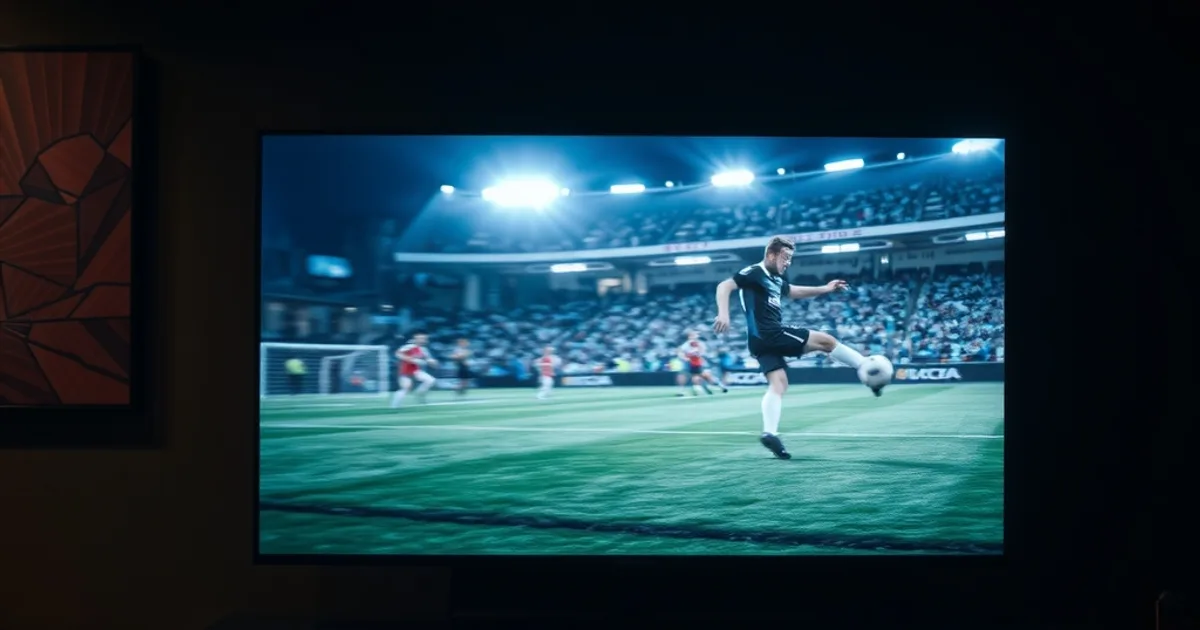
Audio out of sync is the IPTV problem nobody talks about until it ruins a match. Buffering gets all the attention because it's obvious — the picture freezes and everyone notices. Lip-sync drift is sneakier: the commentary keeps flowing, the picture keeps moving, but the sound of the ball hitting the net arrives half a second after you've already seen it hit the net. During a live goal, that half-second is the difference between celebrating with the crowd on screen and celebrating a beat behind it.
Peak sports season (August–December 2026) is exactly when this problem spikes. Premier League and Champions League fixtures are back at full weekly volume, the NFL season kicks into gear, and Europe's other top leagues are all running in parallel — which means more people than usual are setting up new devices, new apps, and new players right when they need everything to just work. A lot of them are hitting audio lag for the first time and reaching for the wrong fix: restarting the app, restarting the router, restarting the TV, in that order, none of which touch the actual cause.
This guide skips the generic advice. We go straight to the two settings that fix the vast majority of real audio-sync cases — hardware vs. software decoder selection, and manual delay trimming in small increments — plus what to do at the device level and the AV receiver level when those aren't enough.
Why Audio Sync Fails on IPTV (Codec Overload, Hardware Limits, Weak ISP)
Audio and video don't travel through your device as one combined signal — they're two separate streams inside the same transport container, tagged with timestamps so your player knows when to line them up. Lip-sync drift happens the moment something disrupts that timing, and there are three usual suspects.
The first is codec overload. Modern IPTV streams are increasingly encoded in H.265/HEVC to save bandwidth, especially for HD and 4K sports feeds. If your device's chip doesn't have a dedicated hardware decoder for that codec, it falls back to software decoding — the CPU has to do the decoding work in real time, and video frames start taking longer to process than audio packets, which have almost no processing overhead. The gap between them grows the longer you watch, which is why sync often starts fine and drifts worse as a match goes on.
The second is hardware limits. Budget streaming boxes, older Smart TV chipsets, and anything running multiple background apps can simply run out of headroom. When the processor throttles or another app steals cycles, video decoding stutters while audio — which is far lighter to decode — keeps pace. That mismatch is what you perceive as lip-sync.
The third is a weak or congested connection. A shaky ISP link doesn't cause the same kind of drift as codec overload — it causes stutter and rebuffering, which then forces the player to resync audio and video after every stall, sometimes imperfectly. If your sync issue coincides with visible buffering, the real problem is connection quality, not the audio pipeline — see /blog/keeping-the-stream-stable for that side of the fix.
Still hearing a delay after trying the decoder switch?
Quick Fix #1: Pause & Resume (Works About 30% of the Time)
Before touching any settings, try the simplest reset: pause playback for 3-5 seconds, then resume. Most IPTV players re-buffer a fresh chunk of the stream on resume and re-anchor audio and video to the same timestamp reference, which clears minor drift that built up from a brief network hiccup.
This works reliably when the cause was momentary — a short packet-loss burst, a brief CPU spike from another app, a Wi-Fi interference blip. It does not work when the cause is structural, like a device that's software-decoding a codec it can't keep up with. In that case the drift will simply start rebuilding within a minute or two of resuming, and you'll need one of the fixes below instead.
A useful diagnostic: if pause-and-resume fixes it but the problem returns within 5-10 minutes, that's a strong signal you're dealing with decoder overload, not a one-off network blip. Skip straight to Quick Fix #2.
Quick Fix #2: Switch Decoder (Hardware to Software or Vice Versa)
This is the fix that actually resolves most persistent, worsening-over-time lip-sync — and it's the one most troubleshooting guides skip entirely. Most capable IPTV players (TiviMate, IPTV Smarters Pro, Perfect Player) let you manually choose whether video is decoded by your device's dedicated hardware chip or by software running on the general CPU. The setting is usually buried under Player Settings or Video Settings, labeled 'Decoder,' 'Hardware Acceleration,' or 'Codec Rendering.'
The logic is simple: hardware decoding is faster and more efficient, but only for codecs the chip explicitly supports. If your device's hardware decoder doesn't have full H.265/HEVC support (common on older Fire TV Sticks and budget Android boxes), forcing hardware decode on an HEVC stream can actually cause worse drift than switching to software decode — because the hardware decoder is silently dropping frames it can't handle fast enough, while software decode processes every frame correctly, just slower and steadier.
The practical test: if you're on hardware decoding and audio is ahead of video (sound arrives before the picture), your hardware decoder is likely bottlenecked — switch to software decode. If you're on software decoding and video is ahead of audio (picture arrives before sound), your CPU is likely struggling to keep pace with a demanding stream — switch to hardware decode if your chip supports the codec. Test each mode for two full minutes of live playback, since drift needs time to reveal its direction.
This single setting solves the majority of cases that a simple restart never touches, because a restart doesn't change which decoding path the app is using — it just reloads the same mismatched configuration.
Quick Fix #3: Adjust Audio Delay Settings (Trim in 50ms Steps)
When decoder switching doesn't fully close the gap — or when the drift is small and consistent rather than growing — manual audio delay adjustment is the precision tool. Most full-featured players expose an 'Audio Delay' or 'A/V Sync' slider, usually measured in milliseconds, that shifts audio earlier or later relative to video without touching the stream itself.
The mistake most people make is jumping straight to large adjustments — plus or minus 300-500ms — based on gut feel. That overshoots almost every time and leaves you oscillating between 'audio too early' and 'audio too late' without ever landing on correct. The better method: trim in small 50ms increments, testing after each change with a clip that has a clear audio cue tied to visual action — a whistle, a kickoff, a commentator's exclamation on a goal. Human perception of lip-sync desync starts around 45ms for a leading audio track and around 125ms for a lagging one, which is exactly why coarse 200-500ms jumps blow straight past the sweet spot.
Direction matters: if audio arrives before the matching video, you need a positive delay (delaying the audio). If audio arrives after, you need a negative delay (advancing the audio, i.e., delaying the video display slightly by playing audio later isn't possible — instead most players let you shift audio earlier). Move in one direction, test, and once you overshoot past sync, cut your step size in half and adjust the other way — the same bisection approach used for tuning any timing offset.
Save the value once you find it. Some players remember delay settings per channel or per stream source rather than globally, so a value that fixes one channel may need re-tuning on another if the source encodes differently.
Device-Specific Fixes (Firestick, Android TV, Smart TV Audio Sync Settings)
Beyond the IPTV app itself, the device's own audio pipeline can introduce or fix delay independently of your player settings — and this layer is often overlooked entirely.
On Fire TV Stick and Fire TV devices, go to Settings > Display & Sounds > Audio, and check whether 'Dolby Digital Plus' or a passthrough audio format is forcing extra processing on your TV or soundbar. Switching to 'Auto' or 'PCM' often removes a full audio-decode stage that was adding latency, particularly on older Fire TV hardware paired with a soundbar.
On Android TV boxes and Google TV devices, check Settings > Device Preferences > Sound for a similar passthrough vs. PCM toggle, and also check whether the device is set to output at a different audio sample rate than your receiver expects — a mismatch here forces the receiver to resample on the fly, adding a small but real delay that compounds with any existing drift.
On Smart TVs (Samsung, LG, Sony, Hisense), the relevant setting is usually called 'AV Sync,' 'Lip Sync,' or 'Audio Delay' inside the Sound settings menu — separate from any app-level setting. This is the TV compensating for its own internal video processing (motion smoothing, upscaling) adding a few frames of delay before the picture reaches the panel. If you've already tuned delay inside your IPTV player, check this TV-level setting isn't double-compensating in the same direction.
AV Receiver Lip-Sync Settings (Receiver-Side Delay Compensation)
If you're running audio through a separate AV receiver or soundbar rather than the TV's built-in speakers, that receiver is an additional processing stage — and modern receivers have their own lip-sync compensation, often ignored because it's buried in a setup menu most people visit once.
Most AV receivers (Denon, Yamaha, Sony, Onkyo) include an 'A/V Sync,' 'Lip Sync,' or 'AV Delay' setting in the audio setup menu, separate from the TV and separate from your IPTV app. This exists specifically because receivers with heavy audio processing (Dolby Atmos decoding, room correction/EQ profiles like Audyssey or YPAO) can introduce their own 20-80ms of processing latency before sound reaches your speakers.
The correct order of operations, if you have all three sync controls available, is: fix the decoder setting in your IPTV player first (this addresses the root cause), then use the app's or TV's audio delay only for fine adjustment, and use the receiver's A/V Sync setting only as a last-stage trim for whatever small delay the receiver itself introduces. Stacking large corrections at every layer is how people end up chasing sync back and forth for an hour instead of five minutes — each layer should nudge, not fix, the total offset.
If It's Still Broken: Try a Different Player
If decoder switching, delay trimming, and device/receiver settings still leave you with drift, the app itself may be the bottleneck. Not all IPTV players handle demanding streams — especially high-bitrate live sports in H.265 — with the same efficiency, and some have noticeably better buffering and resync logic than others.
TiviMate offers the most granular decoder and buffer controls of the mainstream players, which makes it the best choice specifically for chasing down stubborn sync issues on Android and Fire TV. IPTV Smarters Pro is simpler and more consistent across devices but offers less manual tuning. Perfect Player, an older but still capable option, has historically handled software decoding of demanding streams more gracefully on lower-powered hardware than some newer apps.
If you're not sure which player fits your device and streaming habits, /blog/best-iptv-player-for-kemo-2026 breaks down the tradeoffs in more detail — and if your setup spans a phone, a Fire TV, and a Smart TV in the same household, /blog/iptv-family-multi-device-setup covers keeping settings consistent across all of them so you're not re-solving the same sync problem on every screen.
Get a setup built for smooth, in-sync sports streaming from day one.
Prevent Audio Sync Issues Long-Term (Cache Clearing, Codec Selection, Wired Ethernet)
Once you've found a working configuration, a few habits keep it from drifting back into a problem. Clear your player's cache every few weeks — accumulated cache on Android-based devices (Fire TV, Android TV, Nvidia Shield) has been shown to slow app response time, which indirectly affects how promptly the decoder keeps pace with incoming frames.
Where the option exists, favor H.264 over H.265 sources for devices with weaker or unclear HEVC hardware support — H.264 decoding is universally well-supported and rarely causes the drift that undersupported HEVC decoding does, even though it costs more bandwidth. If you're setting up specifically for high-bitrate live sports, /blog/iptv-4k-sports-setup-guide covers the codec and bandwidth tradeoffs for that use case in more depth.
Wired Ethernet remains the single biggest structural fix available, because it removes Wi-Fi interference and jitter as a variable entirely — jitter (inconsistent packet arrival timing, not just packet loss) is a direct contributor to the kind of stall-and-resync cycle that reintroduces drift even after you've tuned everything else correctly.
Finally, keep your player app updated. Decoder handling and buffering logic are exactly the kind of thing app developers quietly improve between versions, and running an outdated build is a common, invisible cause of sync problems that no setting will fix. For a broader first-response checklist when something's off, /blog/quick-troubleshooting is the general starting point before you dive into sync-specific tuning.
Frequently asked questions
Why is my IPTV audio ahead of the video, not behind it?
Audio running ahead of video usually points to a hardware decoder that's dropping or delaying video frames it can't process fast enough — commonly an HEVC/H.265 stream on a chip with weak or partial hardware support for that codec. Switching your player's decoder setting from hardware to software often resolves this because software decoding processes every frame in order rather than skipping ones it can't keep up with.
Does audio sync drift get worse the longer I watch a live stream?
Yes, when the cause is decoder overload rather than a one-off network blip. Because video frames take slightly longer to process than audio packets on an overloaded decoder, the gap compounds minute by minute rather than staying fixed — which is a useful diagnostic: fixed, small drift usually means a delay-setting fix; growing drift usually means a decoder-switching fix.
Should I adjust audio delay in my IPTV app, on my TV, or on my AV receiver?
Fix the root cause first — the decoder setting in your IPTV player. Then use only one layer for fine delay adjustment, ideally whichever is closest to the source of the offset. Adjusting delay at all three layers at once tends to overcorrect and creates a moving target instead of a fixed fix.
Why does pause-and-resume only fix sync temporarily?
Pause-and-resume re-anchors audio and video to a fresh timestamp reference, which clears drift caused by a momentary network hiccup. It doesn't change your decoder configuration, so if the underlying cause is structural — a codec your hardware can't fully decode — the same drift will rebuild within minutes of resuming.
Is wired Ethernet really necessary to fix audio sync, or is Wi-Fi fine?
A strong Wi-Fi connection can be fine for sync specifically, but Wi-Fi jitter — inconsistent packet arrival timing rather than outright packet loss — is a common hidden contributor to stall-and-resync cycles that reintroduce drift after you've otherwise tuned everything correctly. Wired Ethernet removes that variable entirely and is worth it if sync issues keep returning despite correct decoder and delay settings.
Do different IPTV players handle audio sync differently on the same device?
Yes. Buffering logic, resync behavior after a stall, and how much manual decoder/delay control is exposed all vary by app. TiviMate offers the most granular tuning for chasing persistent sync issues, while simpler apps like IPTV Smarters Pro trade that control for consistency — if one app keeps drifting despite correct settings, trying a different player is a legitimate next step, not a last resort.
Read next: the pricing page or the FAQ.