
IPTV on Multiple Devices: The Family Streaming Setup Guide
August 4, 2026 · 7 min read
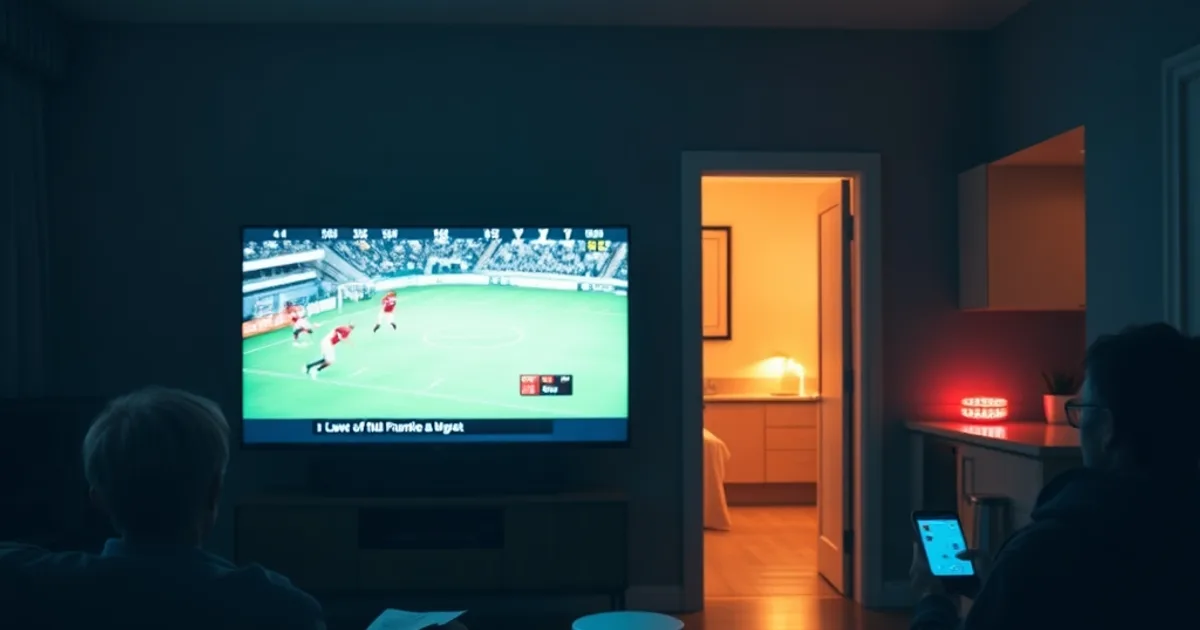
It's back-to-school season, and if your household looks like most, the streaming lineup just got more complicated. Kids need their shows in the bedroom, someone wants the match in the living room, and a phone is playing something in the kitchen while dinner gets made. Surveys on home entertainment consistently show that around 70% of households now own three or more streaming-capable devices — Fire Sticks, Smart TVs, phones, tablets, game consoles — all competing for the same internet connection and, if you're not careful, the same single stream.
Most IPTV guides online treat this as an afterthought: a paragraph about 'using a router' bolted onto a generic setup article. That's not good enough for a family actually trying to watch four different things in four different rooms without one of them freezing mid-goal. This guide is built specifically around getting Kemo IPTV running smoothly across every device in your home — what actually causes buffering when multiple streams run at once, how to wire your network so it doesn't happen, and which Kemo plan fits a real household instead of a single-viewer setup.
If you haven't picked a plan yet, start with our full breakdown in /blog/the-four-kemo-iptv-plans and /blog/kemo-iptv-subscription-guide — this article assumes you already understand the basics and want the multi-device specifics.
Understanding connection limits: why your plan type matters
The single most common reason a family's IPTV setup breaks down isn't the internet — it's the plan. A subscription built for one screen will either refuse a second login or silently kick the first device off when a second one connects. That's not a bug, it's how single-connection accounts are designed to work, and no amount of router tweaking fixes it.
If more than one person in the house wants to watch something different at the same time, you need a plan with multiple simultaneous connections built in, not a workaround like sharing credentials and taking turns. Kemo's plan tiers scale connection counts specifically for this — see /blog/the-four-kemo-iptv-plans for the exact breakdown of how many devices each tier supports. The right move is matching the plan to how your household actually watches TV, not to how many people technically live there. A family of four where everyone streams separately in the evening needs a different tier than a couple who mostly watches together.
Not sure how many connections your household actually needs?
Internet speed and bandwidth requirements for simultaneous streams
Every simultaneous stream draws its own chunk of your internet connection, and those chunks add up fast. A single HD stream needs a modest, steady amount of bandwidth; a 4K stream needs considerably more. Run two or three streams in different rooms at once and you're multiplying that demand, not just adding a little overhead.
The practical rule: check your actual measured internet speed (not the number on your provider's marketing page) against how many devices will realistically stream at the same time during peak hours — typically weekday evenings and weekend afternoons when live sports are on. If your connection is already close to its limit with one stream running smoothly, adding two more without headroom is where buffering starts, regardless of how good the IPTV service itself is. This is also where household Wi-Fi congestion from other devices — laptops downloading, phones backing up photos, a smart doorbell — quietly eats into the bandwidth you thought was available for streaming.
Network setup: Ethernet-first strategy vs mesh Wi-Fi for whole-home coverage
Wherever it's physically possible, wire the primary streaming device — the one in the main living room, usually running the highest quality stream — directly to your router with an Ethernet cable. A wired connection doesn't compete for radio spectrum with every other device in the house, it doesn't degrade with distance or walls, and it removes an entire category of buffering causes in one move.
For rooms where running a cable isn't realistic, a mesh Wi-Fi system beats a single router trying to cover the whole house. A single router loses signal strength room by room, and the device furthest away — often exactly the bedroom where a kid is trying to watch something — ends up with the weakest, least stable connection. Mesh nodes placed strategically keep signal strength consistent across every room instead of tapering off at the edges.
Our deeper network walkthrough at /blog/keeping-the-stream-stable covers router settings, QoS prioritization, and channel selection in more detail if you want to fine-tune beyond the basics here.
Device compatibility checklist: Fire Stick, Roku, Android TV, Smart TV, phones
Kemo IPTV runs across the devices most families already own, but each one behaves a little differently. Fire Stick and Fire TV are the most flexible — they support the widest range of IPTV player apps and generally deliver the smoothest install experience, which is why we cover it in its own dedicated guide at /blog/kemo-iptv-firestick-setup.
Roku has historically been more restrictive about which player apps it allows, so setup there sometimes takes an extra step or a different app path than Fire Stick. Android TV boxes and Android-based Smart TVs tend to work close to identically to Fire Stick since they share the same underlying app ecosystem. Older Smart TVs with limited app stores are the trickiest case — if your TV can't install a player app directly, a cheap streaming stick plugged into an HDMI port solves the problem instantly and is often the simplest fix rather than fighting with a TV's built-in software.
Phones and tablets are the easiest of all — install the app, log in, done — and they're usually the device that reveals bandwidth problems first, since they're the ones people carry between rooms with inconsistent Wi-Fi signal.
Step-by-step: Installing Kemo on your first and second devices
Set up your main device first — the living room TV or the device you'll use most — and confirm it plays cleanly on its own before adding anything else. This isolates any early issues to the setup itself rather than a network already strained by multiple streams, and gives you a clean baseline for comparison later.
Once the first device is stable, install on the second device using the login credentials tied to the connection slot your plan allows, and test it while the first stream is still running. This is the real test of your setup: does the second stream hold steady, or does the first one start stuttering the moment the second connects? If it stutters, that's your signal to revisit bandwidth or wiring before adding a third device, not a sign the service itself is unreliable.
Repeat the same process for each additional device, testing with the others already running rather than one at a time in isolation — a device that works perfectly alone can still struggle once it's competing with three others for the same connection.
Optimizing each room: video quality, EPG sync, favorites setup
Not every room needs the same video quality. The main living room screen, especially a large 4K TV, benefits from the highest available quality setting. A bedroom device or a phone rarely needs the same bitrate — dropping quality slightly on secondary devices frees up bandwidth for everyone else without a noticeable difference on a smaller screen.
Sync the electronic program guide (EPG) on each device so schedules and channel numbers match across the house — nothing frustrates a family faster than the kids' room showing a different channel lineup than the living room. Set up favorites lists per device too: the kids' device doesn't need the news and sports channels cluttering the list, and the living room doesn't need cartoon channels buried in the middle of the guide.
Stop taking turns — get a plan built for every screen in the house.
Troubleshooting multi-stream buffering: why it happens and how to fix it
When buffering only happens with multiple streams running — and disappears when you drop back to one — the cause is almost always bandwidth contention, not the IPTV service itself. Start by checking how many devices are actively streaming at that moment versus how many your internet plan can realistically handle, then check whether the affected device is on Wi-Fi at the far end of the house versus wired or on a mesh node nearby.
A quick diagnostic order that solves most cases: lower video quality on secondary devices first, move the worst-performing device closer to a router or mesh node (or wire it if possible), and confirm no other household device is mid-download or mid-backup at the same time. If buffering happens even with just one stream running, that's a different problem entirely and points to your base connection rather than multi-device load — our general troubleshooting steps at /blog/quick-troubleshooting walk through that scenario specifically.
Persistent buffering that survives all of the above, even on a single stream at off-peak hours, is worth flagging to support directly rather than continuing to tweak settings on your own.
Frequently asked questions
Can I share a single Kemo account across the whole family?
It depends on your plan's connection limit, not on the login credentials themselves. A plan built for one stream will only allow one active connection at a time regardless of how many devices have the app installed. Choose a plan tier with enough simultaneous connections for how many people actually watch at once — see /blog/the-four-kemo-iptv-plans for the specifics.
How many devices can I install the app on?
You can install the Kemo app on as many devices as you like — a phone, a Fire Stick, a Smart TV, a tablet — installation itself isn't limited. What's limited is how many of those devices can stream at the exact same moment, which is governed by your plan's simultaneous connection count, not the number of installs.
What's the difference between device limits and stream limits?
Device limit refers to how many separate devices have the app installed and logged in over time. Stream limit refers to how many of those devices can play video simultaneously. You can log the same account into several devices, but only your plan's stream limit worth of them can watch different — or even the same — content at once.
Does adding more devices slow down my main TV?
Only if your internet connection or Wi-Fi coverage doesn't have enough headroom for the extra streams. Wiring your main device with Ethernet and moving secondary devices onto a mesh node instead of a weak Wi-Fi signal usually resolves this without needing to upgrade your internet plan.
Is Wi-Fi ever good enough, or do I really need Ethernet?
Wi-Fi is fine for secondary devices and rooms where cabling isn't practical, especially with a mesh system providing strong signal throughout the house. Ethernet is simply the more reliable option for your primary, highest-quality stream since it removes interference and distance as variables entirely.
Read next: the pricing page or the FAQ.